

Update, September 2026: OpenAI is retiring custom GPTs, and personal ChatGPT accounts can’t create new ones anymore. The steps below still help if you’re editing a GPT you already have. I moved all of mine to skills and wrote up what changes and how to move yours.
Ever wish you could build your own version of ChatGPT, one that actually sounds like you, gets your niche, and doesn’t need constant babysitting? You pretty much can. Creating a custom GPT is way easier than it sounds, no code required, and once you have one set up it saves you so much back and forth.
Whether you want it to help with writing, brainstorming, product listings, or just making your daily workflow a little smoother, it all starts with knowing what to ask and how to shape it into something repeatable.

This post contains affiliate links. If you sign up through one, I earn a commission at no extra cost to you. I only point to tools I actually use or would recommend.
Why Are Custom GPTs Worth Setting Up?
Think of a custom GPT like a very fast learner you’ve trained to work exactly the way you do. Want AI to write like you? It can. Generate YouTube descriptions in your format? Sure. Write listings for print on demand products? Yep. They’re flexible, they don’t require any coding, and once the setup is done you stop starting from scratch every single time.
Quick note: As of September 2026, new GPTs can only be created in ChatGPT Business, Enterprise and Edu workspaces. Existing GPTs still work, and editing one depends on your plan.
How to Build Your First Custom GPT
The actual setup is pretty straightforward. Go to OpenAI’s GPT builder, click Create in the upper right, and type in what you want your GPT to do. Think of it like giving a smart new hire their first set of instructions. Then test it, tweak it, and save when it feels right. That’s genuinely it for the basics.
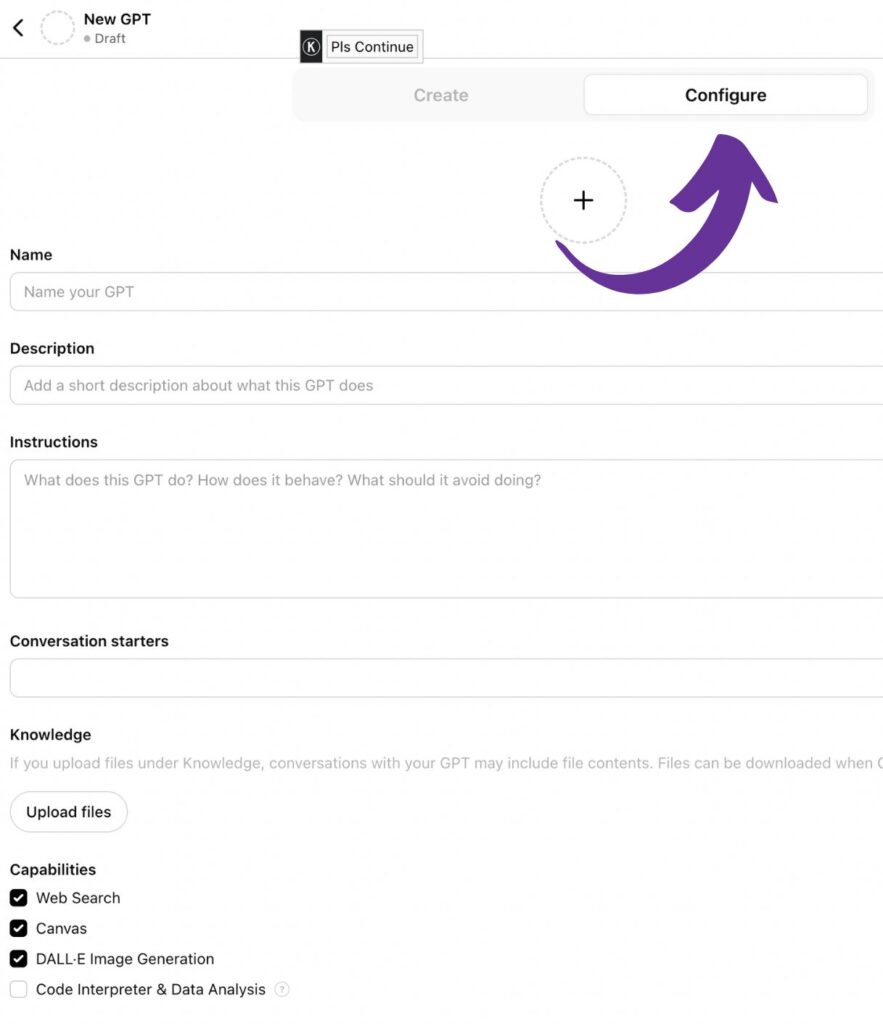
I skip the Create tab and go straight to Configure. That’s where you can paste in your system instructions, add example prompts, and upload files, all in one place without the back and forth. Once you’ve got your instructions written out, Configure is faster.
The Settings That Actually Matter
System instructions are where you set the tone for everything. This is where you tell your GPT how to behave, how formal or casual to be, what to avoid, what format you want, all of it. Be specific here because vague instructions give you vague results. Example prompts are also worth adding. They’re sample questions or tasks you want your GPT to handle, and they help it get up to speed on your style faster than instructions alone.
The Knowledge section lets you upload files your GPT can reference, things like your brand voice guide, product details, writing samples, or FAQs. It’s a good way to train your GPT on what it needs to know without cramming everything into the instructions field. Conversation starters are optional but useful if you’re sharing your GPT with someone else or just want to give yourself a quick launch point when you open it.
For capabilities, just turn on what you actually need. Web search if it needs current information, image generation if visuals are part of the job, Code Interpreter if you’re working with files or data. You don’t need everything on.
How to Build a GPT from a Chat That Already Worked
This is one of my favorite things to do. If you’ve had a conversation where the AI was totally on point, the responses felt right, the tone was perfect, don’t let that disappear. Go back to that chat, scroll to the beginning, and look at what you actually said that worked. Then ask the AI to help you turn it into something reusable.
You can literally say: “Can you help me turn this conversation into a reusable prompt so I can get similar results next time?” And then if you want to go further: “Can you help me turn this into custom GPT system instructions based on what worked in this conversation?” You’re using the AI to help you use the AI better. When it works, it works well.
Prompts That Get Better Results
A few things I’ve found actually make a difference. Telling your GPT to ask clarifying questions before answering cuts down on those confidently wrong responses that come out of nowhere. Adding “answer clearly and concisely” sounds obvious but it genuinely helps. Asking for step by step breakdowns when things get complicated keeps the output usable instead of overwhelming.
Setting the tone explicitly is underrated too. “Keep it casual and conversational” or “sound like a professional coach” gives the GPT a direction that shows up in every response. And using a scenario, like “pretend you’re helping someone who’s never used n8n before,” adds context that changes the output in a good way.
How Do Claude Projects Compare to Custom GPTs?
If you’re using Claude by Anthropic, their version of this is called Projects. Same general idea: you set up a custom space, give it instructions, and it knows what you’re working on. Claude handles longer content and more complex tasks really well, so if you’re working on something that spans multiple prompts or needs a lot of depth, it’s a solid option. You set it up the same way, start a project, add your instructions, upload context files if you have them, and build from there.
| Custom GPT (ChatGPT) | Claude Projects | |
|---|---|---|
| Setup | Instructions, example prompts, and file uploads in the Configure tab | Set up a space, add instructions, and upload context files |
| Best at | A bigger ecosystem of pre-built tools and more sharing options | Longer content and complex, multi-prompt tasks |
| Where to start | OpenAI’s GPT builder, Create or Configure | Start a new Project and add your instructions |

What Goes Wrong With Custom GPTs (and How to Fix It)?
The most common issue is vague instructions. If you tell your GPT to “help with writing” and nothing else, it has no idea what that actually means for you. The more specific you are upfront, the less you have to correct later. The other thing that trips people up is expecting it to be perfect right away. Your first version will probably need some adjusting and that’s normal. Tiny changes in your prompt or instructions can lead to noticeably better output, so treat it like an ongoing thing you refine over time rather than a one-time setup.
Frequently Asked Questions About Custom GPTs
Do I need a paid ChatGPT account to create a custom GPT?
As of September 2026, personal ChatGPT accounts, including Plus and Pro, can’t create new custom GPTs. Business, Enterprise and Edu workspaces can, depending on their settings, and OpenAI is retiring custom GPTs altogether.
What’s the difference between a custom GPT and a regular ChatGPT chat?
A regular chat starts fresh every time with no memory of your preferences. A custom GPT is pre-configured with your instructions, tone, and any files you’ve uploaded, so it behaves consistently without you having to re-explain yourself every session.
Can I use a custom GPT for my n8n workflows?
Yes. You can connect OpenAI to n8n and call your custom GPT as part of a workflow. This is useful for things like generating content drafts, writing product descriptions, or processing text in a consistent voice automatically. If you want to go deeper on the n8n side, the AI Automation Society Plus community is where I keep up with n8n and AI automation without needing a coding background.
How is Claude Projects different from a custom GPT?
They’re similar in concept but Claude Projects tends to handle longer context and more complex tasks well. Custom GPTs in ChatGPT have more options for sharing and have a larger ecosystem of pre-built tools. Both are worth trying depending on what you’re building.
How do I make my custom GPT sound like me?
Upload writing samples in the Knowledge section and write out your voice guidelines in the system instructions. Be specific about tone, what words you avoid, how formal or casual you are, and what you never want it to sound like. The more examples and direction you give it, the less editing you’ll do on the back end.
The short version: a custom GPT is a reusable set of instructions, so write down how you want it to work once, test it, and refine it over time instead of re-explaining yourself in every chat.
A tool I built
Build a Bio
Build a branded link in bio page in about a minute, then embed it on your own blog so your clicks land on your site, not someone else’s.
Build your bio →I run an affiliate program on the tools I build. Approved affiliates earn 20% on what their referrals pay, for up to a year. US only for now. See the program →
Related reading
- Automate Content Creation for the Shiny Object Chaser
- The n8n Vocabulary Guide for People Who Are Not Developers
If you want to see how I’m actually connecting custom GPTs to n8n workflows, subscribe below. I’ll be sharing the blueprints as I build them, including what broke and how I fixed it. That’s where the good stuff lives.