


To automate blog analytics across more than one site, I use n8n workflows to pull traffic from GA4, keyword rankings from Search Console, and post metadata from WordPress, all into Airtable, with a Cloudflare dashboard that shows every blog in one view. Six scheduled workflows do the collecting. I check one page instead of nine browser tabs. Here’s exactly how the whole thing is wired together.
I run three blogs. Three separate Google Analytics dashboards. Three Search Console accounts. Three WordPress admin panels. And for a while, I was manually logging into all of them just to answer one simple question: how are my posts actually doing?
Spoiler: I wasn’t checking often enough. And when I did, I was squinting at numbers across nine browser tabs, trying to remember which post was losing traffic and which one needed an update.
So I did what any reasonable automation nerd would do. I built a system that does all of it for me. Here’s how I set up n8n workflows that automatically pull traffic data, keyword rankings, and post metadata from all three blogs into Airtable, plus a dashboard that ties it all together.
This post contains affiliate links. If you sign up through one, I earn a commission at no extra cost to you. I only point to tools I actually use or would recommend.
The Problem: Analytics Scattered Everywhere
If you run one blog, checking your numbers is manageable. Open GA4, glance at your top pages, check Search Console for keyword movement. Takes five minutes. Now multiply that by three.
Each blog has its own GA4 property, its own Search Console account, its own WordPress dashboard. The data lives in completely separate places, and none of them talk to each other. I wanted to know things like:
- Which posts across all my blogs got the most traffic this week?
- Are any posts going stale without me noticing?
- Which keywords are actually bringing in clicks?
- Do all my images have alt text? (Shocker: they didn’t.)
Answering those questions manually meant opening a minimum of nine tabs and doing a lot of mental math. So I stopped doing it, which is worse.
Who is this analytics system for?
This is for you if you run more than one site, or if you run one site and keep forgetting to look at it. Removing the login step is the whole point, because the login step is where I always quit.
When it’s a good fit:
- You publish across two or more blogs and the data sits in separate accounts
- You want a record of how a post performed six months ago, not just a rolling window
- You’re already running n8n for something else, so this is one more workflow rather than a new habit
When it isn’t:
- You run one blog and you do open GA4 every week. Nothing here beats a five minute habit you already have
- You want polished charts on day one. This is your own data in your own tables, so you’re the one deciding what a good chart looks like
- You’d rather not run an n8n instance at all. The workflows are free, the place they run isn’t
How does the blog analytics system fit together?
The system has three layers.
Airtable is the central hub. Each blog has its own base with tables for Posts, Performance, Keywords, and Content Health. Everything flows into these tables.
n8n is the automation engine. Six workflows run on schedules, pulling data from GA4, Google Search Console, and WordPress, then writing it all to Airtable. If you’re newer to n8n, my n8n vocabulary guide for non-developers breaks down the terms first.
A Cloudflare dashboard reads from all three Airtable bases and shows me a single view with tabs for each blog. Traffic charts, content health scores, keyword rankings, all in one place.
| Workflow | Pulls from | Runs | Writes to |
|---|---|---|---|
| Traffic Sync (3, one per blog) | GA4 Data API | Weekly, Mon 6am | Performance |
| Posts Sync (all blogs) | WordPress REST API | Weekly, Mon 5am | Posts |
| Keyword Tracking (all blogs) | Search Console API | Monthly, 1st | Keywords |
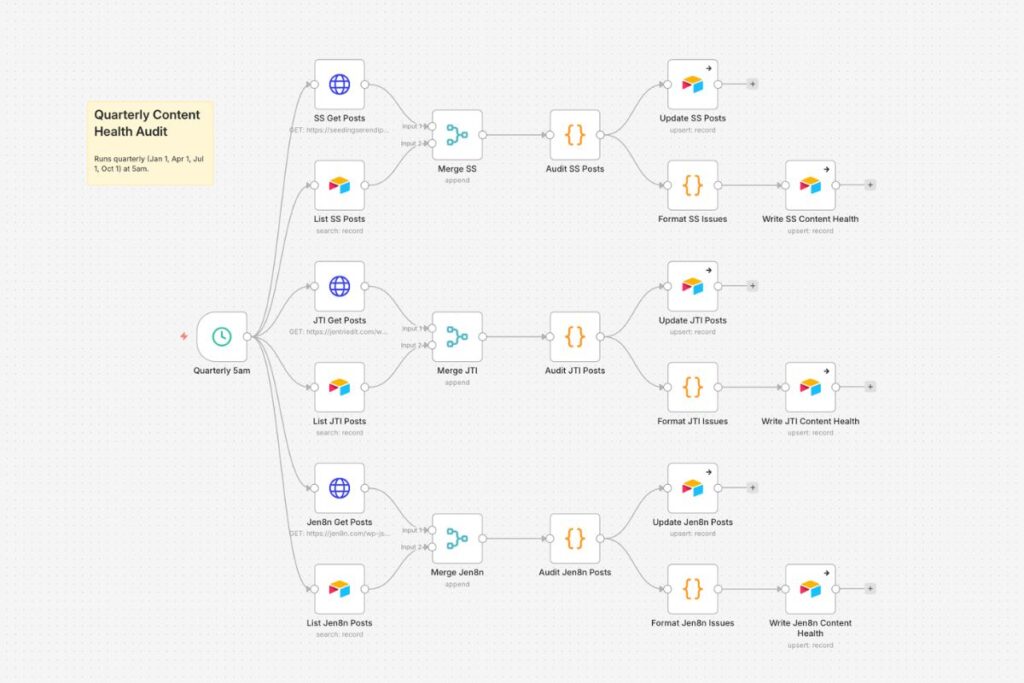
| Content Health Audit (all blogs) | WordPress content | Quarterly | Content Health |
What do you need to build a blog analytics system?
Five pieces, and four of them are free. Here’s the whole list before you open a single tab.
- n8n, self-hosted or Cloud. This is where the six workflows run. Self-hosting means paying for a small VPS, and mine runs on Hostinger. n8n Cloud starts around $20 a month. Should you self-host n8n runs the math if you’re still deciding.
- Airtable, free tier. One base per blog, with tables for Posts, Performance, Keywords, and Content Health.
- A Google Cloud project with the GA4 Data API and the Search Console API turned on. Free, and the fiddliest part of the whole setup, but it’s a one time thing.
- A WordPress application password for each blog. Free, generated from your own user profile, and it’s what lets the Posts Sync read your content over the REST API.
- Somewhere to host a dashboard, if you want the single view. I used Cloudflare Pages with a Worker proxy so the Airtable key stays server side. The free tier covers it.
You can skip the last one and just look at Airtable directly. I built the dashboard because I wanted tabs.
How do I sync GA4 traffic into Airtable every week?
Three workflows (one per blog) run every Monday morning. Each one:
- Hits the Google Analytics Data API to pull the last 7 days of data
- Breaks it down by page title, with sessions, pageviews, and average time on page
- Categorizes traffic sources: Google, Pinterest, Direct, and everything else
- Writes it all to the Performance table in that blog’s Airtable base
The n8n Google Analytics node handles the OAuth and API calls. A Code node aggregates the raw data per page (since GA4 returns one row per page per channel), and the Airtable node creates the records.
I started with daily syncs, but these are newer blogs since I sold my old ones. Daily data was mostly zeros. Weekly gives me enough signal without cluttering the table.
What it looks like in Airtable: Each row is one post for one week, with columns for Sessions, Pageviews, Source – Google, Source – Pinterest, Source – Direct, Source – Other, and Avg Time on Page.
How do I track keyword rankings from Search Console?
One workflow runs on the first of every month and pulls keyword data from Google Search Console for all three blogs in parallel. For each site, it:
- Calls the GSC Search Analytics API for the previous calendar month (actual first-to-last day, not a fixed 28-day window)
- Gets the top 100 keywords with their position, clicks, and impressions
- Writes them to the Keywords table in each blog’s Airtable base
This one uses HTTP Request nodes with a Google OAuth2 credential instead of a dedicated GSC node. The API is straightforward: POST to the searchAnalytics endpoint with your date range and dimensions.
Why monthly? Keyword positions fluctuate daily, and for newer blogs, weekly data is mostly noise. Monthly gives a clearer picture of trends.
What it looks like in Airtable: Each row is one keyword with Current Ranking Position, Clicks, Impressions, Ranking URL, and Date Checked. Over time, you can spot which keywords are climbing or dropping.

Weekly Posts Sync: WordPress to Airtable
This workflow runs Monday at 5am, before the GA4 sync at 6am, so the Posts table is always up to date when traffic data lands. It hits the WordPress REST API for each blog and pulls:
- Post title and URL
- Publish date and last modified date
- Word count (calculated by stripping HTML from the content and counting words)
- Category (mapped from WordPress category IDs to names)
- Featured image status
- Internal link count (counted by searching the post content for links matching the blog’s domain)
The Airtable node uses upsert matched on URL, so it creates new posts and updates existing ones without duplicates.
Why this matters: The Posts table is the foundation that everything else connects to. Performance records, keyword data, and content health checks all link back to individual posts. Without this sync, I’d be manually entering every post into Airtable.
What does the quarterly content health audit check?
This is my favorite workflow. It runs quarterly and examines every published post across all three blogs for common issues. It checks for:
- Missing alt text: finds every img tag without an alt attribute and lists the image filenames
- Missing featured image: flags posts where WordPress has no featured image set
- Thin content: posts under 300 words
- Stale content: posts not updated in 6+ months
- No internal links: posts with zero links to other content on the same blog
- No external links: posts with zero outbound links
- No subheadings: posts missing H2 or H3 tags (bad for readability and SEO)
- Short title: under 30 characters (weak for click-through rate)
- Long title: over 60 characters (gets truncated in search results)
Each failing check creates a record in the Content Health table with the check name, type (SEO, Quality, or Freshness), detailed notes about what’s wrong, and a link back to the post. The workflow uses upsert on the Content Health table, so the same issue just gets updated next quarter instead of creating duplicates. Once I fix an issue and mark it “Fixed” in Airtable, it won’t reappear unless the problem comes back.
What I learned running it the first time: Every single post on my newest blog had zero internal links. Makes sense, there were only three posts and I hadn’t linked between them yet. But I wouldn’t have noticed without the audit flagging it.
Grab the free one-page printable of all nine checks, thresholds included, and tick them off across a batch of posts.
Download the 9-point checklist (PDF)The Dashboard: One View for Everything
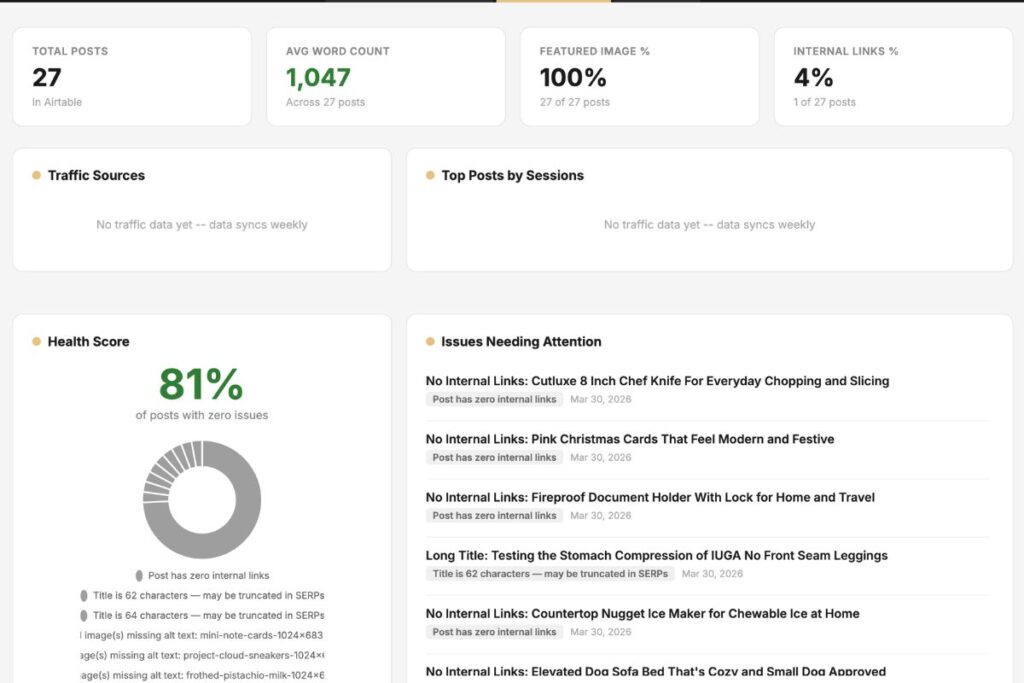
The workflows handle the data collection, but I still needed a way to see everything without opening Airtable. I built a single HTML dashboard hosted on Cloudflare Pages. It reads from all three Airtable bases through a worker proxy (so the API key stays server-side) and shows:
- Quick stats: total posts, average word count, percentage with featured images, percentage with internal links
- Traffic overview: a donut chart of traffic sources plus a top-posts-by-sessions table
- Content health score: what percentage of posts have zero issues, with a breakdown by type
- Issues list: every open content health issue with details, sorted by date
- Full content list: sortable table with every post showing word count, internal links, alt text status, primary keyword, and days since last update
- Keyword rankings: position, clicks, impressions, and CTR, all color-coded
Tabs at the top let me switch between blogs. Data is cached per tab, so switching back doesn’t re-fetch.
What I’d Do Differently
Start with the Posts table. I built the GA4 workflow first, but the Posts table is what everything links to. Sync your posts from WordPress first, then layer analytics on top.
Don’t over-schedule for new blogs. I initially set everything to daily. For blogs with under 20 posts, that’s just creating rows of zeros. Weekly (or even monthly) is plenty until traffic picks up.
Watch out for field defaults in n8n. The Airtable node in n8n caches your table schema, including dropdown options and checkbox defaults. If you include a field in the mapping but don’t assign it a value, it can write defaults that overwrite your real data. I accidentally zeroed out all my word counts this way. Only map the fields you’re actually writing to.
WordPress category IDs aren’t names. The REST API returns category IDs like [25], not names like “Mindset.” You either need the _embed parameter (which doesn’t play well with _fields) or a lookup table in your Code node. I went with hardcoded ID-to-name mappings, simple and fast.
Frequently asked questions
Can I automate blog analytics for free?
Mostly, yes. Self-hosted n8n, Airtable’s free tier, and the GA4, Search Console, and WordPress APIs are all free to use. The only thing I pay for is the small VPS n8n runs on. If you use n8n Cloud instead, that starts around $20 a month.
Do I need to know how to code to build this?
Not really. n8n is mostly drag-and-connect nodes, and the only code is a couple of small Code nodes for aggregating data. I lean on Claude to write those, then paste them in. If you can follow a recipe, you can build this.
How often should the analytics workflows run?
For newer blogs, weekly for traffic and posts, monthly for keywords, and quarterly for the health audit. I started with daily syncs and got tables full of zeros. Slow it down until your traffic actually justifies more frequent pulls.
What data can n8n pull from Google Analytics and Search Console?
From GA4 you get sessions, pageviews, average time on page, and traffic sources per page. From Search Console you get keywords with their position, clicks, and impressions. n8n writes all of it straight into Airtable on a schedule.
Is n8n better than a paid SEO tool for this?
It’s different. Paid tools give you polished dashboards out of the box. n8n gives you raw control and one central place for all your blogs, for the cost of a VPS. I like owning the data and wiring it exactly how I want it.
Try Building Your Own
If you’re running even one blog, piping your analytics into one central place pays for the setup time the first month you skip the tab-opening ritual. You don’t need to build all six workflows at once. Start with the WordPress Posts Sync to get your content into Airtable, then add GA4 or GSC tracking when you’re ready.
If you’d rather learn n8n alongside other people figuring it out, the AI Automation Society is the Skool community I hang out in for exactly this kind of build.
The tools I used: n8n (self-hosted) for workflow automation, Airtable for the data hub, Cloudflare Pages for the dashboard, the Google Analytics Data API and Google Search Console API for traffic and keyword data, and the WordPress REST API for post metadata.
The whole system runs on autopilot. I check the dashboard when I feel like it, and every Monday morning there’s fresh data waiting. No more nine-tab analytics sessions. Since these run unattended, I also have n8n back up every workflow automatically so a bad edit can’t wipe them out.
The short version: a handful of scheduled n8n workflows plus one Airtable base per blog turns scattered analytics into a single dashboard you actually check.
A tool I built
Build a Bio
Build a branded link in bio page in about a minute, then embed it on your own blog so your clicks land on your site, not someone else’s.
Build your bio →I run an affiliate program on the tools I build. Approved affiliates earn 20% on what their referrals pay, for up to a year. US only for now. See the program →
Related reading
- The n8n Vocabulary Guide for People Who Are Not Developers
- Should You Self-Host n8n? Run the Math First
- How I Back Up Every n8n Workflow Automatically
- How to Track AI Traffic in GA4 (I Got 12 Visits)
I’ll be breaking down each workflow in detail in upcoming posts, and the content health audit is the fun one to build. Subscribe below so you don’t miss them.